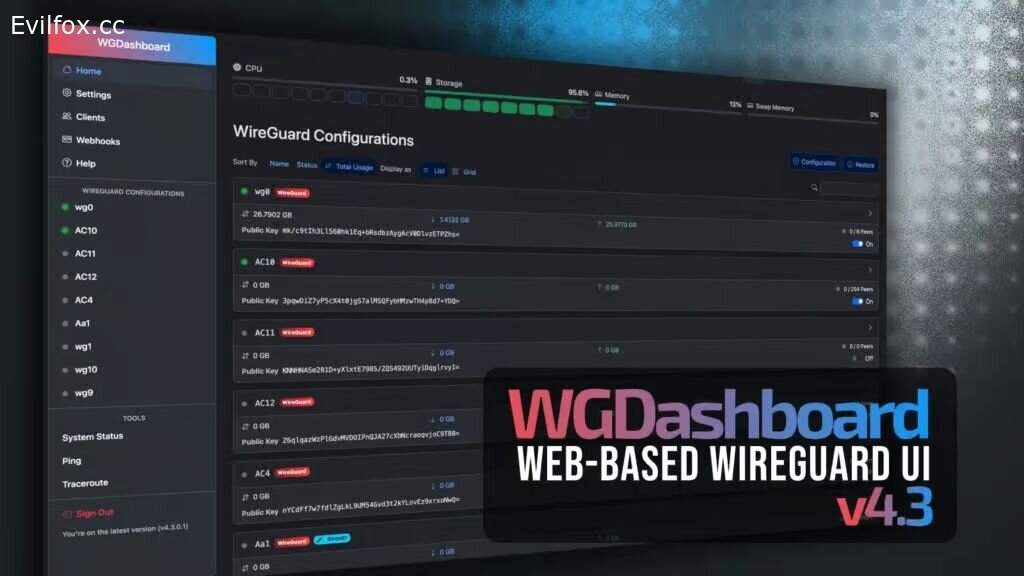
I'll provide you with a comprehensive guide to install WGDashboard with WireGuard, AmneziaWG (AWG), and Nginx with SSL using Docker Compose. This setup will give you a secure web interface to manage your VPN server.
? Prerequisites
Before starting, ensure you have:
-
Ubuntu 22.04/24.04 server (or similar Linux distribution)
-
Docker and Docker Compose installed
-
A domain name pointing to your server's IP address (e.g.,
wg.yourdomain.com) -
Ports 80, 443, and 51820 (UDP) open in your firewall
? Step-by-Step Installation Guide
Step 1: Install Docker and Docker Compose
If Docker is not already installed, run:
curl -sSL https://get.docker.com | sh
sudo usermod -aG docker $USER
newgrp docker
Step 2: Create Project Directory
mkdir -p ~/wgdashboard/{conf,data,nginx/conf.d}
cd ~/wgdashboard
Step 3: Create Docker Compose File
Create docker-compose.yml:
version: '3.8'

services:
  # WGDashboard with WireGuard & AmneziaWG support
  wgdashboard:
    image: ghcr.io/wgdashboard/wgdashboard:latest
    container_name: wgdashboard
    hostname: wgdashboard
    restart: unless-stopped
    environment:
      - TZ=UTC
      - global_dns=1.1.1.1,8.8.8.8
      # Auto-start these WireGuard interfaces (comma-separated)
      # - wg_autostart=wg0
    ports:
      - "51820:51820/udp"  # Main WireGuard port
      # Add more UDP ports if needed (e.g., 51821-51830:51821-51830/udp)
    volumes:
      - ./conf:/etc/wireguard
      - ./dаta:/data
      - ./conf:/etc/amnezia/amneziawg  # AmneziaWG configs
    cap_add:
      - NET_ADMIN
      - SYS_MODULE
    sysctls:
      - net.ipv4.ip_forward=1
      - net.ipv4.conf.all.src_valid_mark=1
    networks:
      - wg_network
    expose:
      - "10086"  # Internal web port

  # Nginx reverse proxy with SSL
  nginx:
    image: nginx:latest
    container_name: nginx
    restart: unless-stopped
    ports:
      - "80:80"
      - "443:443"
    volumes:
      - ./nginx/conf.d:/etc/nginx/conf.d
      - ./nginx/ssl:/etc/nginx/ssl
      - ./nginx/www:/var/www/html
    networks:
      - wg_network
    depends_on:
      - wgdashboard

  # Certbot for SSL certificates
  certbot:
    image: certbot/certbot:latest
    container_name: certbot
    volumes:
      - ./nginx/ssl:/etc/letsencrypt
      - ./nginx/www:/var/www/html
    entrypoint: "/bin/sh -c 'trap exit TERM; while :; do certbot renew; sleep 12h & wait $${!}; done;'"
    networks:
      - wg_network

networks:
  wg_network:
    driver: bridge
Step 4: Configure Nginx for Reverse Proxy
Create nginx/conf.d/wgdashboard.conf:
# HTTP redirect to HTTPS
server {
    listen 80;
    server_name wg.yourdomain.com;  # Replace with your domain

    location /.well-known/acme-challenge/ {
        root /var/www/html;
    }

    location / {
        return 301 https://$server_name$request_uri;
    }
}

# HTTPS server
server {
    listen 443 ssl http2;
    server_name wg.yourdomain.com;  # Replace with your domain

    # SSL certificates (will be created by certbot)
    ssl_certificate /etc/nginx/ssl/live/wg.yourdomain.com/fullchain.pem;
    ssl_certificate_key /etc/nginx/ssl/live/wg.yourdomain.com/privkey.pem;
    ssl_trusted_certificate /etc/nginx/ssl/live/wg.yourdomain.com/chain.pem;

    # SSL configuration
    ssl_protocols TLSv1.2 TLSv1.3;
    ssl_ciphers HIGH:!aNULL:!MD5;
    ssl_prefer_server_ciphers on;
    ssl_session_cache shared:SSL:10m;
    ssl_session_timeout 10m;

    # Proxy to WGDashboard
    location / {
        proxy_pass http://wgdashboard:10086;
        proxy_set_header Host $host;
        proxy_set_header X-Real-IP $remote_addr;
        proxy_set_header X-Forwarded-For $proxy_add_x_forwarded_for;
        proxy_set_header X-Forwarded-Proto $scheme;

        # WebSocket support
        proxy_http_version 1.1;
        proxy_set_header Upgrade $http_upgrade;
        proxy_set_header Connection "upgrade";
    }

    # Static files (if needed)
    location /static {
        proxy_pass http://wgdashboard:10086/static;
        proxy_set_header Host $host;
    }
}
Step 5: Obtain SSL Certificate
First, create the webroot directory for Certbot:
mkdir -p nginx/wwwStart only Nginx to obtain the certificate:
docker-compose up -d nginx
Now run Certbot to get SSL certificate (replace with your domain and email):
docker-compose run --rm certbot certonly --webroot \
  -w /var/www/html \
  -d wg.yourdomain.com \
  --email [email protected] \
  --agree-tos \
  --no-eff-email
Step 6: Start All Services
# Stop Nginx (it will restart with full configuration)
docker-compose down

# Start all services
docker-compose up -d
Step 7: Verify Installation
Check if all containers are running:
docker-compose psView logs:
docker-compose logs -f? Configuration and First Access
Access WGDashboard
-
Open your browser and navigate to
https://wg.yourdomain.com -
Login with default credentials:
-
Username:
admin -
Password:
admin
-
-
You'll be prompted to create a new admin account (recommended)
Enable WireGuard Interface
-
Go to Configurations → Click on
wg0 -
Toggle the Status switch to enable the interface
-
The interface will start listening on UDP port 51820
Configure AmneziaWG (AWG)
WGDashboard supports AmneziaWG out of the box . To use it:
-
In WGDashboard, create a new configuration
-
Select AmneziaWG as the protocol type
-
Configure your desired settings
Create VPN Clients
-
From Home, select your WireGuard configuration (e.g.,
wg0) -
Click + Peer to add a new client
-
Enter client name and configure settings
-
Click Add and then download the client configuration
? Maintenance
Update Containers
docker-compose pull
docker-compose up -d
View Logs
# All services
docker-compose logs -f

# Specific service
docker-compose logs -f wgdashboard
SSL Certificate Renewal
Certificates auto-renew every 12 hours (configured in the certbot service). To manually renew:
docker-compose run --rm certbot renewBackup Configuration
tar -czf wgdashboard-backup-$(date +%Y%m%d).tar.gz conf/ data/ nginx/ssl/⚙️ Advanced Configuration
Environment Variables for WGDashboard
You can add these to the environment section of the wgdashboard service:
| Variable | Description | Example |
|---|---|---|
global_dns |
Default DNS for clients | 1.1.1.1,8.8.8.8 |
public_ip |
Server's public IP (auto-detected if not set) | your-server-ip |
wg_autostart |
Auto-start specific interfaces | wg0,wg1 |
enable_totp |
Enable 2FA | true |
Multiple WireGuard Ports
To support multiple WireGuard interfaces, add port ranges:
ports:
  - "51820-51830:51820-51830/udp"
? Troubleshooting
Permission Denied Errors
If you see "Permission denied" errors , ensure:
-
The container has
NET_ADMINcapability -
The
confanddatadirectories have correct permissions
IPv4 Forwarding
Verify IP forwarding is enabled on the host:
sysctl net.ipv4.ip_forward
# Should output: net.ipv4.ip_forward = 1
Firewall Rules
Ensure these ports are open:
-
80/tcp- HTTP (for Certbot) -
443/tcp- HTTPS (web interface) -
51820/udp- WireGuard (or your custom ports)
Cannot Access Web Interface
Check if Nginx is properly configured and SSL certificates exist:
docker-compose exec nginx nginx -t? References
-
Official WGDashboard Documentation
-
Vultr Deployment Guide
-
Docker Compose Examples
Your WireGuard VPN server with WGDashboard, AmneziaWG support, and Nginx SSL is now fully operational! ?
